

Use the dashboard
The Orbit dashboard is the browser UI for the host it runs on: tasks, runs, errors, automation, and settings. It has no login and binds to loopback only. To use another machine’s dashboard, tunnel to it over SSH, or switch to a registered host with the host picker.
Open it locally
Section titled “Open it locally”orbit web serveThis serves every workspace in the current Orbit registry at
http:/ and tries to open a browser.
| Option | Effect |
|---|---|
--no-open |
Do not open a browser. |
--port |
Serve on another port. |
--workspace |
Open on this workspace: a registered name, ws_* ID, or checkout path. If nothing matches, the dashboard opens on All workspaces. |
--operator |
Enable operator controls without an interactive terminal. See Authorization. |
orbit |
Serve only the workspaces in <DIR>/, not ~/. |
--global is still accepted but does nothing. The server refuses
non-loopback addresses such as --host ; use
orbit to reach another machine.
Open it over SSH
Section titled “Open it over SSH”orbit web connect my-servermy-server is anything ssh accepts: a hostname, user@host, or a
~/ alias. The command:
- Forwards a local loopback port to the remote dashboard port.
- Attaches to a remote
orbitthat is already running, or starts one withweb serve --operator. - Prints
http:/and opens it in a browser./ localhost:<port> - On Ctrl-C, closes the tunnel. It stops the remote server only if it started it.
| Option | Effect |
|---|---|
--port |
Local port. Default 7878, or a free port if 7878 is busy. An explicit port that is busy fails. |
--remote-port |
Remote dashboard port. Default 7878. |
--workspace |
Open on this remote workspace. connect refuses --root. |
--no-operator |
Start the remote server without operator capability, so automation controls and settings writes stay read-only. |
--no-open |
Do not open a browser. |
connect cannot add operator capability to a server it did not start. If it
attaches to one running without it, it prints a notice. Restart that server
with orbit , or stop it and reconnect.
connect opens a separate tab, and its own port, for each machine. If the
machine is already registered with orbit , you can instead stay in
one dashboard and switch hosts. Use connect when the
machine is not registered, when you want to choose its operator capability
with --no-operator or a different --remote-port, or when you want a
dashboard that does not depend on a machine in between. Use the host picker
to move between machines you have already registered.
Switch hosts
Section titled “Switch hosts”When the serving machine has registered other hosts (see
Run Orbit across hosts), the left rail shows a Host
picker above the workspace picker. It lists the serving host first, marked
(serving , then each registered host by name. Choose one and every
panel, action, log tail, and the rail’s host readings show that host.
The host picker names it; the readings do not repeat the name. The workspace picker then lists that
host’s workspaces: the workspace you had stays selected if the host also
lists it as active, All workspaces stays the aggregate of that host’s workspaces,
and anything else falls back to that host’s remembered workspace, a workspace
with a live drain, then its registry default (or its first active workspace
when that default is not active).
The serving dashboard reaches the host over SSH, with the SSH identity of the
machine that serves the dashboard, not your browser’s machine. It opens a
tunnel when you first select a host, attaches to a dashboard already running
there or starts one, and closes the tunnel after five minutes without use.
The remote host stays authoritative: it answers from its own stores and
enforces its own gates. SSH runs without a prompt here, so a host that needs a
passphrase or password reports as unreachable. The remote dashboard is
expected on the default port, 7878.
?host=names the host in the URL, by registered name (any case) or machine ID, so a reload or copied link opens the same host. The URL always wins. Choosing the serving host removes the parameter.- Remembered choice. The browser remembers the last host you picked and
uses it when the URL has no
?host=. It forgets a host that is no longer registered. Choosing the serving host clears it. - Skew banner. A host on a different Orbit version or protocol than the serving host shows a persistent note above the panels, naming both. It is a warning, not a refusal: views and actions follow what that host supports.
- Unreachable state. A host that cannot be shown replaces every panel
with one state naming the host, an error code, and its message. The codes
are
unknown_host(a?host=that is not registered, listed in the picker as(not),registered) unreachable_destination,process_timeout,host_identity_mismatch, andhost_too_old. Retry tries the host again and Back to the serving host returns. The picker stays available. The dashboard asks the host again on each refresh and shows its panels once it answers. - Remote-run links. Where a task’s execution line says which machine ran
it (
on) and that machine is registered on the serving host, the name links to that run on that host, asbuild-box ?host=. An unregistered machine stays plain text.<name>&workspace= <workspace>&window= <window>#runs?run_id= <run> - Run links. Every run link (Drain, Jobs, Routines, Tasks, Health, Analytics) uses that same form and carries the selected host, workspace and time window, so a link opened in a new tab or copied shows the run in that scope.
- Read-only. Writes to another host go through the serving dashboard’s
operator session. Without one, a note reads
Read-onlyand write controls are disabled with the same reason.on <host>: <reason>
Settings › Hosts edits the serving host’s registry, including while another host is selected, and says so. The picker reads that same registry. Each reachable row also shows that host’s load, memory, disk, admission throttle, and drain or pull-drain state, so those readings do not require a host switch. Show on a row switches the dashboard to that host.
Workspace scope
Section titled “Workspace scope”With more than one workspace registered, the left rail has a workspace picker.
An explicit ?workspace= link (including the --workspace match and
workspace=) takes precedence. Otherwise, the dashboard restores the last
workspace you chose in this browser for the selected host. If that workspace
is unavailable, or browser storage is disabled, it selects an active workspace
with a live drain, then the registry default (the workspace containing the
server’s current directory when available), then the first active workspace.
Choosing All workspaces in the picker is remembered too.
The header drain chip counts workspace/host pairs across registered hosts, for example 2 of 20 workspaces draining. A workspace registered on two hosts counts twice. Click the chip to open the All workspaces fleet drains, one tab per host (each with a dot for its liveliest drain, hollow when the host is unreachable) and one line per workspace; the dashboard remembers the host tab you chose. Select a workspace to inspect it on its host.
- All workspaces lists tasks from every served workspace. Automation, the auto-drain, settings, and other per-workspace panels are read-only there. Task actions still work on a row that names its owning workspace and are sent to that owner. A row without an owner stays read-only.
- Inactive workspaces show as
<name>and cannot be selected.(unavailable) - The URL holds the host, workspace, and time window, so a reload or copied link opens the same view.
- Analytics → Reliability → Pipeline covers every workspace, whatever is selected. Metrics, Codebase, Resources, Forecast, Cost, and Agents show one workspace; All workspaces leaves those panels on “Select a workspace to view this panel”. See Analytics.
Confirm the selected workspace before you act. A count or metric does not prove that a particular task or run succeeded.
Find your way around
Section titled “Find your way around”| Rail | Shows |
|---|---|
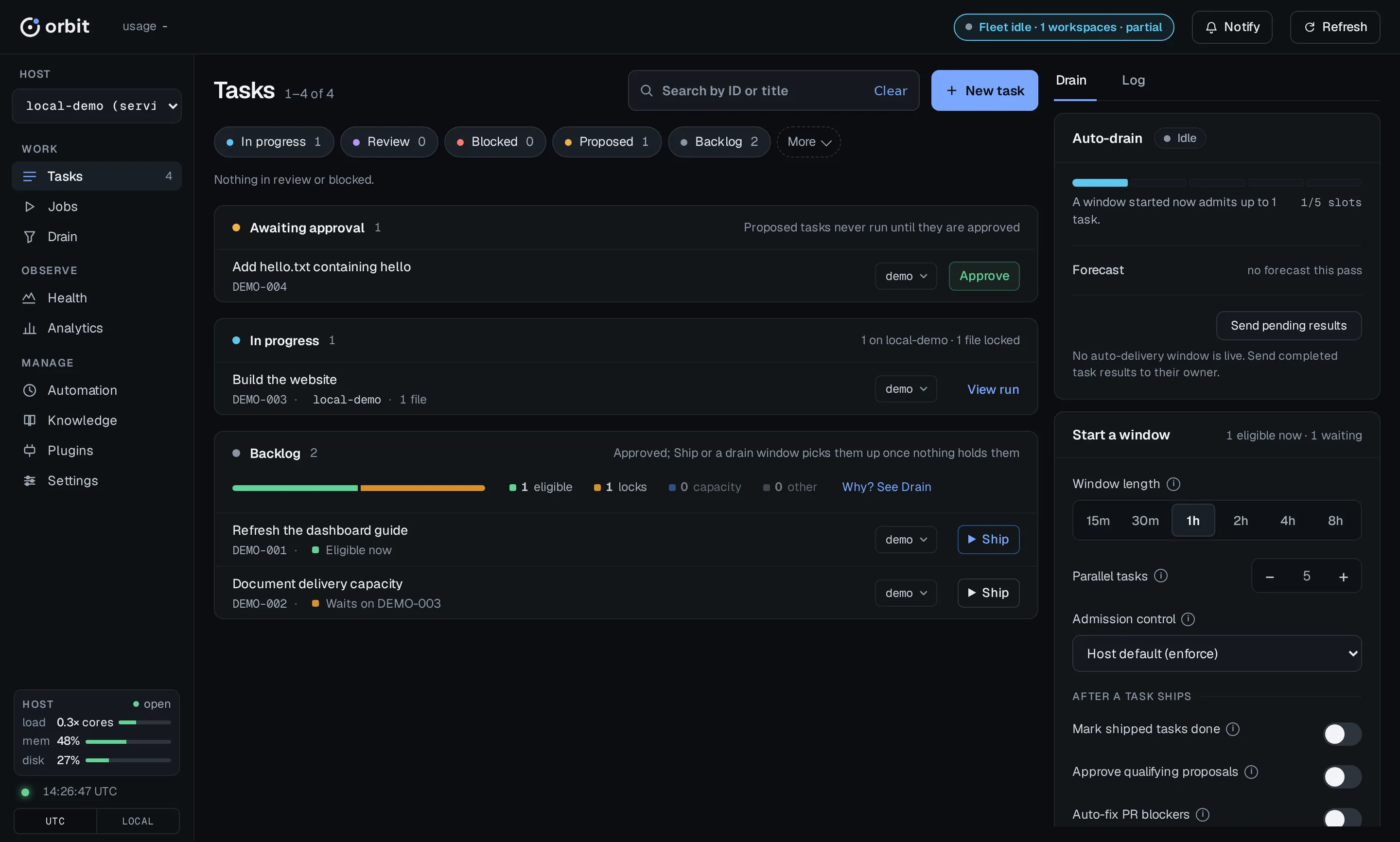
| Tasks | Tasks, with the ones waiting on you first. The right dock has three tabs: Drain (the auto-drain card and a simple Start a window card), Locks held and a live Log; an open task takes its place. |
| Runs | Job runs, newest first, and run detail. |
| Health | What is broken now: Incidents and Doctor. Incidents has three tabs: Incidents (grouped failures), Events (every audited call, opening on failures and denials), and Errors (step and event failures). |
| Analytics | How delivery is trending: Metrics, Reliability (Pipeline and Tools), Codebase, Resources, Forecast, Cost, Agents (Orchestrators, Implementers, Reviewers, Pilots), and Experiments. See Analytics, the Reliability notes in Runs and errors, and Agents. |
| Automation | Routines (with the host scheduler clock), Auto-tasks, and Jobs. |
| Leases | Read-only path holders, waiters and recent landing notices for the selected workspace. |
| Knowledge | Friction records. |
| Plugins | Installed plugins and the panels they add. |
| Settings | Effective, Workspace file, Global file, Crews, Keys, System, and Hosts. |
The rail foot shows live load, memory, and disk readings for the serving host
(plus disk I/O stall on Linux hosts) above the refresh line and the UTC/Local
control. The top bar shows one chip per provider with its worst window’s value, a
meter and its weekly pressure (claude ), the drain state when a
delivery window is active, Refresh, and one warning chip only when a reading
is elevated or worse. Hover, focus or click a provider chip to open a dialog with
each of its windows, when they reset, the gate that holds crews back and what the
pressure means; click or Pin open keeps it open, and Esc or a click outside
closes it. +N (and, on narrow screens, the single summary chip) lists
every provider. Counts in
the selected window sit on the rail: failed, timed-out, and interrupted runs
under Runs, and doctor warnings, policy denials, and failing routines under
Health. Click a rail count to open the view behind it. The denial count
opens Health → Incidents → Events filtered to denials.
View URLs keep older section names: #diagnostics/ is Health,
#operations/ is Automation, and #config/ is Settings. Plugins is
#plugins.
Leases
Section titled “Leases”Select a workspace and open Leases to see path holders and queued requests or expansions, including holders inherited from a directory lease. Recent landing notices appear alongside them. The view is read-only and does not aggregate All workspaces. Request, renew, expand or release leases with the CLI or MCP tools instead; see Hold paths with leases.
Search by ID or title, or filter by status. Done, Rejected, Archived, Someday, All, and Not ready are under More. Press Enter on a full task ID to open it even when the filter, page, or selected workspace hides it. New task proposes a task.
Tasks are grouped in the order you act on them: Awaiting approval
(proposed), review, blocked, in progress, then backlog. Each row shows the
title on its first line and the full task ID on its second, followed by what a
backlog task waits on (Waits , Throttled) or where a running or
blocked task’s run is. An estimated regression risk appears as a percentage,
with ~ for partial support; a task without an estimate has no risk part in
its row. Focus or hover an estimate for its explanation. Each row carries the
action its group waits on:
Approve on a proposed task, Ship on a backlog task, and View run
on a task in progress.
Open a task to see its detail and every action its status allows:
| Action | Shown for |
|---|---|
| ship | backlog. Runs the workspace’s ship mode (pr or local). Disabled while a ship run for the task is in flight. |
| approve | proposed or review. Refused while a non-terminal local run lists the task; the error names that run, and the task, its comments, and its history stay unchanged. Stop the run, then approve. |
| reject | proposed, review, or backlog. |
| archive | Any status except archived. |
| comment | Any status. |
The row’s crew dropdown and the detail’s status dropdown are editable when a workspace is selected, or in All workspaces for a row that names its owner. The status list shows every status:
- Moves the lifecycle table allows still ask for the evidence they need, such as a plan or completion summary.
- Every other status sits under force (off-table), marked ⚠. Picking one
asks for confirmation, then applies it as an operator override. This is the
same as
orbitand is recorded in task history as atask update <id> --status <status> --force forcedevent. Agents cannot force a status.
The right dock has three tabs. Drain shows the auto-drain card and
Start a window (window length, parallel tasks, admission control and
what happens after a task ships; see auto-drain). On a replica,
Start pulls directly from the owner. Locks held lists the files tasks
currently lock, by file or by task. Log is a live orbit. tail you can
filter to all, err, deny, or warn. Opening a task replaces the
dock with its detail; below 1000px the task list fills the width.
A task’s detail leads with Details: status, complexity, crew, the
operating systems it can run on, who created and carried it, its run and the
machine it ran on, its pull request, its tags, and a Risk chip with the
regression-risk score. The estimate is fitted on task size alone, without
per-file or crew attribution. Tasks without a usable diff-based fit use the
number of distinct file and directory paths in their context selectors. A
review or done task with a resolvable diff and enough matching landed-diff
history uses the diff’s inserted and deleted lines. The Regression risk
breakdown shows this basis and its size band: recent done tasks on the same
basis at least this size, and how many regressed. A ~ before the percentage
means some selectors have no path and are omitted from the declared-file count,
so that count is a lower bound. When no estimate is available, the Tasks row
has no risk part; the Risk chip says No estimate and its tooltip gives the
reason: no (no context selectors and no usable diff-based estimate),
no (selectors identify no file or directory), thin (not
enough usable done-task observations on the selected basis to fit), or
unavailable (the estimate could not be computed). The detail breakdown is
shown only when there is an estimate. The score uses window_days and
min_support even when workflow. is off, since that
switch controls prompt marks only. A circled i beside a value explains it on
hover or focus. Its tabs are
Overview, Delivery (only for a task with a delivery claim), History,
Runs, Artifacts, and
Comments. The Artifacts tab lists files already stored on the task and
previews the ones that are safe to show. It does not attach files. See
Task artifacts.
The metadata card above the tabs starts with Scheduled: the scheduled time, or not scheduled, with Edit when you can change it. The row is shown when it has a value or you can edit it, and remains visible even when the card has no other metadata. When the task has started, an Actual start row follows Scheduled with the actual started-at time, so the two times are not implied to be the same; a task that has not started has no such row. Run details in the same card include Branch and Worktree on one line; long values lose their beginning to an ellipsis so the distinctive end stays visible, including on a phone. Hover for the full value, or click it to copy the complete branch or worktree path.
The card lists relations one row per type, with each task id opening that
task. A Regression from id that carries a classification adds its readable
nature, escape and severity beside the id — for example ORB-1 , with unclassified
muted. The severity names who rated it unless that was the filer, and a link
stored before severity existed shows medium , muted. Each link also
lists its defect sites under that id, one per line in monospace with the start
elided and the full selector in its title. A link without a classification stays a plain id,
as do the other relation types.
Edit task metadata
Section titled “Edit task metadata”Expand a row to edit these fields in place. Edits change the task record; they do not dispatch work.
| Field | Where and how |
|---|---|
| description | Left column. edit opens a Markdown editor. |
| acceptance criteria | Left column, collapsed section. edit, then one criterion per line. |
| complexity | Details. Pick low, medium, hard, or xhard; it saves on change. A stored unassessed is shown but cannot be picked. |
| Scheduled | Top of the metadata card. Edit, then an RFC 3339 time with an offset; clear the field to remove the schedule. |
| tags | edit after the tags in Details. Separate tags with commas or newlines. |
| context files | context files section. edit, then one selector per line: file:…, dir:…, or symbol:…. |
Text fields save with save and discard with cancel. A failed save keeps your draft open with the error.
For context files, the server checks that the file or directory exists and is
the kind the selector names. It does not look up symbol: names. If the task
will create the target, check allow missing context before you save.
Distributed tasks
Section titled “Distributed tasks”On the owner of a distributed drain, a task with an execution claim shows a distributed execution panel with the claim’s state and the accepted handoff.
- approve on a
reviewtask with a handed-off claim sends Approve handoff for the exact candidate shown. - Revoke authority and Recover claim → blocked / Recover claim → backlog require a reason. With the field empty, they send nothing.
- A replica shows the claim as held by its owner and refuses all three actions.
Diagnose and recover blocked work
Section titled “Diagnose and recover blocked work”A blocked task, or a delivery the pipeline is holding, opens with a Why stuck card above its tabs. Read the card before you choose an action. The card is read-only and shows five facts:
| Row | What it shows |
|---|---|
| Escalation | The escalation note the run recorded. When it repeats the block’s reason, it reads See blocked note above and jumps to that note. |
| Landing review | The verdict of the review that checked the candidate, with its finding count. |
| Root cause | The root cause the run recorded. |
| Mergeable | Whether the task’s pull request is mergeable or conflicting. |
| Required checks | Each required check on the pull request, as passed, failed or pending. |
A note longer than 280 characters or five lines is clamped. Use Show full
escalation or Show full root cause to expand it. A fact the dashboard
could not read shows unavailable. A note the run recorded as absent shows
none. For Mergeable, unavailable is followed by the reason.
Use the detail’s Runs tab to open the failed step behind a block. For the failed run’s own Resume, see Runs and errors.
Blocked tasks show Resume candidate and Discard and re-implement. Blocked, in-progress and review tasks, and any task with a Why stuck card, also show Settle merged PR.
- Resume candidate (
blockedtasks). Returns the task to backlog and keeps the candidate and pull request its stopped run published. The next run adopts them, then validates, reviews and lands them. Nothing is re-implemented. - Discard and re-implement (
blockedtasks). Discards that candidate, closes the task’s undelivered pull requests, and returns the task to backlog. The next run implements from scratch. - Settle merged PR (
blocked,in-progressorreviewtasks, and any task with a Why stuck card). If its delivery pull request already merged outside the pipeline into its target branch, the task moves todonewith a landing note that names the pull request and merge commit. If it has not merged, nothing changes and the refusal shows.
The same three actions from the command line:
orbit task requeue "$TASK_ID" --reason "flaky test fixed; rerun the candidate"orbit task requeue "$TASK_ID" --reason "candidate is stale" --discard-candidateorbit task settle-merged "$TASK_ID"Choose by what the evidence shows:
- The cause is fixed and the candidate is sound: Resume candidate.
- The candidate is wrong or stale: Discard and re-implement.
- You merged the delivery pull request yourself: Settle merged PR.
Resume candidate and Discard and re-implement each open a
confirmation that states their effect, then ask for a reason. The reason is
recorded in task history. An empty reason sends nothing and shows
[requeue_reason_required]. Cancelling either prompt sends nothing.
Discard and re-implement is destructive. The dashboard does not restore
the discarded candidate or reopen the pull requests it closed. Settle merged
PR asks only for confirmation.
Write the reason for the next reader of the task history, for example
flaky .
Clear a pilot admission hold
Section titled “Clear a pilot admission hold”A backlog task that a pilot assessment held from admission shows a Pilot admission hold callout in its detail, with two actions:
- Clear hold records that the held requirement is satisfied.
- Approve anyway records a deliberate override. The task is admitted despite the finding.
Each action asks you to confirm, then asks for evidence. Approve anyway
asks for a reason instead. The evidence is recorded with the decision. Blank
evidence sends nothing and shows [pilot_admission_evidence_required]. The
callout does not appear while an open Decision needed request exists for
the pilot-admission gate. Answer that request’s options instead.
The same decision from the command line is a comment whose first line is exact. Put the evidence on the following lines:
orbit task update "$TASK_ID" \ --comment $'task-pilot-admission: clear\nThe duplicate finding is wrong: the migration is new.'Read Continuous delivery for what each hold means and the other admission checks that still apply after a decision.
Scope and refusals
Section titled “Scope and refusals”- The Why stuck card and the Pilot admission hold callout are visible
to every viewer. Only the actions need operator capability. Without it, the
server refuses with
403andcode:. See Authorization.authorization_denied - Recovery and pilot-admission actions are disabled, with the reason on hover,
in All workspaces unless the row names its owner. They are also disabled
on a host that refuses forwarded writes, which shows
Read-only. Select the task’s workspace or host, then try again.on <host>: - A refused action changes nothing. The code and message stay on the task until you start another attempt on it.
Auto-drain
Section titled “Auto-drain”The Drain tab in the Tasks dock contains the auto-drain card and Start a window: a time-bounded delivery window that ships approved backlog tasks in parallel. Select one active workspace to start a window. On a replica checkout, Start pulls work from its owner without leaving Tasks. The header drain indicator opens the dock’s fleet overview in All workspaces mode.
Old #drain, #drain/ and #drain/ bookmarks open Tasks with the
auto-drain card, Start card or Log selected. The dock keeps the throttle as an
amber note and forecast peaks as compact meters against their thresholds.
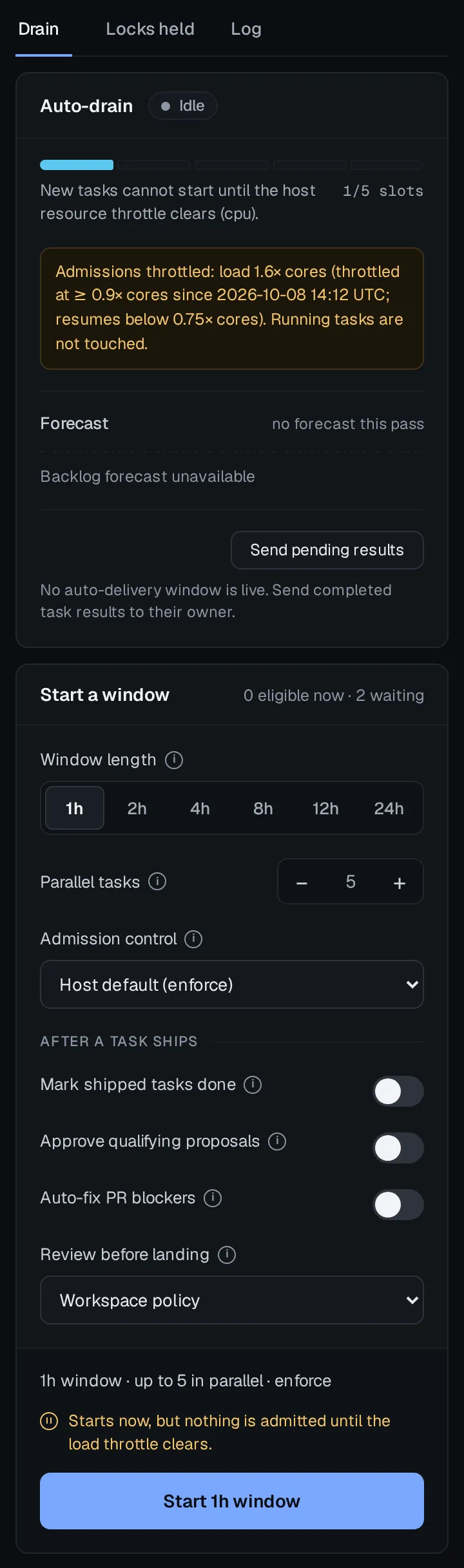
The card shows:
- State. Draining, with time left and
N; Winding down · N workers still running once admissions stop; orrunning / M admitted idle. The header links the live window’s run. Windows started from the CLI show here too. - Capacity. Running tasks against the limit, free slots, and what a window started now would admit.
- Admission forecast. The last pass’s forecast time, CPU and memory peaks
against the admit thresholds (for example
85., with timing, amount and headroom in the tooltip), the tasks it admitted with the profile that priced each one, and any candidate enforce held. A pass that built no forecast says6% / 98% noand, when an earlier forecast was kept, shows that one too. Shadow decisions are marked hypothetical; they do not hold anyone.forecast this pass - Readiness. Start a window counts the tasks eligible now and those
waiting, from a read-only readiness snapshot. The task list’s Backlog
card splits the same snapshot into Eligible now, Waiting on locks,
Waiting on capacity, and Waiting, other; click one to filter the
card. Each backlog row’s dot shows its pool, and its tooltip names the wait,
such as
Waitsand the lock they contend for. Locks held has By file (default) and By task views. Expand a locked path to see its holders or a task to see its paths. Shared paths are marked and sorted first; typing a task ID filters to the paths its context overlaps. The chosen view is remembered.on ABC-2
Start a window offers duration, parallelism, admission control and the permissions below. Its footer sums the window up and shows any refusal or throttle warning. The server validates the request before starting a run.
| Control | Effect |
|---|---|
| Window length | 1h, 2h, 4h, 8h, 12h or 24h (--for). The default is 1h. |
| Parallel tasks | How many tasks run at once. Blank uses the runtime default (5). Anything but a whole number of 1 or more disables Start. |
| Mark shipped tasks done | Off (default) leaves shipped tasks in review. On moves every task the window ships from review to done, not only those in the readiness snapshot before the window starts. It needs an operator session on the owner; disabled on a replica. |
| Approve qualifying proposals | Off (default) leaves proposed tasks for you. On (--approve-proposed) lets every pass approve proposed tasks that have context files and an assessed complexity (or the no-diff-expected tag) and a clean task-pilot verification, including tasks filed while the window runs; no-auto-approve tasks are skipped. It needs an operator session and is disabled on a replica, where only the owner approves work. A live window started with it shows Approving proposed tasks with its approved and held counts. A hold for pilot warnings also shows each finding’s kind and first line. |
| Auto-fix PR blockers | Off by default. Repairs failed required checks and merge conflicts on the window’s own PRs through the existing watcher and repair ledger. Needs an operator session on the owner machine; disabled on pull replicas with a visible reason. It never grants merging or proposed-task approval; merging still requires Mark shipped tasks done. |
| Review before landing | Workspace policy (default) leaves review to review.. Add before-PR review or Add before-landing review (--review) adds that layer to this window only when policy applies none. The layer policy already applies is accepted, and the other one, a workspace that sets neither workflow. nor workflow., and local-only delivery are refused when you start. Disabled on a replica, where the owner decides review. See Review layers. |
| Start … window | After a confirmation, starts a window with these settings and stays on Tasks. On a replica, it pulls from the owner. Reads Start another … window while one is draining. |
| Stop | Stops new admissions (orbit ). Admitted workers keep running; this is not cancellation. Needs an operator session. |
| Send pending results | Replaces Stop when no window is admitting. Delivers pull settlements this replica recorded but has not yet delivered to its owner. Needs an operator session. |
Without operator capability you can still start a window that stops at review; Mark shipped tasks done, Approve qualifying proposals, and Auto-fix PR blockers stay disabled and say why. Each control’s help is behind the circled i beside its label. Nothing is reserved or started until you click Start. Results appear in the card’s status line, including whether auto-fix was enabled. If the submission response is lost, check the window and run history before starting again; the browser does not retry it.
On a replica, a live pull drain counts as a window. The header reads Pull drain, and the Stop confirmation says admitted leaves stay claimed by their owner and that cancelling one fails its claim. See Set Up a Distributed Drain.
Runs and errors
Section titled “Runs and errors”Runs lists job runs for the selected workspace. Filter by All,
Live, or Failed, narrow the list with a task id or job id, and use
the same time window as the rest of the dashboard. The address keeps
run_state, task_id, job_id, and window, so a shared link reopens the
same list. A task id such as ORB-15159 keeps that task’s runs; any other
id keeps one job. Window all lists every matching run with no time bound.
Click a run for its metadata, steps, events, child
runs, and a timing chart when one is recorded. A failed, timed-out, or
interrupted run opens on the step it stopped at and the error it recorded.
| Action | Available for | Effect |
|---|---|---|
| cancel | pending or running |
Cancels the run. |
| Resume | failed, interrupted, or timeout |
Restarts from the first step that did not succeed. A run authorized to mark tasks done requires an operator session to resume. |
| Replay run | Any run (asks first if it is still running) | Submits a new run of the same job. |
A refused action shows its error above the list until you dismiss it or start
another action. If the action succeeded but the view could not refresh, the
message says the view is stale. A 409 from ship or another start means a
conflicting run or workspace claim is held: refresh and open the named run
instead of retrying.
On a distributed-drain follower, cancelling a run that works a claimed task
asks first: it fails the claim on the owner and blocks the owner’s task, which
the confirmation names. The run detail shows the claim (pull_claim), and a
pull drain’s detail lists the crews its window can run and those it excluded,
with the reason.
A delivery run’s detail has a review cell with the review layer it
captured and its origin: the run’s own --review option, workspace policy
with the key’s source, or the owner’s claim.
These counts answer different questions:
| Where | Counts |
|---|---|
| Runs rail count | Job runs that failed, timed out, or were interrupted in the window that count was computed for. Click the count to open Runs on Failed for that window; the list total matches the count. |
| Runs Failed filter | Failed, timed-out, and interrupted runs in the selected window. All drops the state filter and keeps the window. |
| Health denial count | Policy denials in the window that count was computed for. Click it to open Events filtered to denials. |
| Health → Incidents → Errors | Step and event failures in the selected window. The panel header names the window and reports when retention or the stderr read cap leaves part of it unread. |
From a terminal, the same facts come from orbit ,
orbit , and orbit .
Events opens on the failure + denied filter, because nearly every audited call is a successful poll. Choose all to list every status. A link from an incident lists its events whatever their status.
The Analytics → Reliability → Tools cards for Failure categories, Unexpected Failures by Callable Tool, and Lifecycle diagnostics use the capped incident scan. When the scan reaches its limit, each card marks its counts as capped and shows partial coverage. These counts cover only the newest non-success audit rows in the selected window; older failures and affected runs may be omitted. Per-tool unexpected-failure rates use the scanned failure counts with successful-call counts from the full window, so rates may be understated. Total audited events and raw tool-call counts still cover the full window.
Tools follows the Analytics window independently of an Events cutoff. With an all or 1h window, its bounded summary uses 24h, named in the cards. Select a tool on Tools to open its events for the window the card shows. Exact incident-event links select all statuses because they list the recorded event IDs without a status restriction. Spend, tokens, and read-only exploration are explained in Analytics.
Analytics
Section titled “Analytics”Analytics shows how delivery is trending on the host you are viewing. Open it from the rail. The views are Metrics, Reliability, Codebase, Resources, Forecast, Cost, and Agents. Reading them leaves tasks, drains, and admission unchanged. Forecast also keeps one snapshot of its forecast an hour, so it can later be checked.
Metrics, Codebase, Resources, Forecast, Cost, and Agents show the selected workspace. All workspaces replaces each of those panels with “Select a workspace to view this panel”. Reliability → Pipeline covers every workspace on this host. While it is open, the workspace picker is marked fleet-wide. Resources are learned on the host you are viewing. Switching hosts shows the profiles that host learned.
The address keeps the host, the workspace, and the dashboard time window
(1h, 24h, 7d, 30d, or all). Metrics and Cost follow it, and so
do Agents when you pick a time window there. Codebase and Reliability keep
the windows named below. Views that rate each delivery (Resources, Forecast
and, by default, Agents) count deliveries instead, so a month without work
does not empty them. What each agent role
is scored on, and orbit , are in Agents.
Metrics
Section titled “Metrics”Open Metrics to see whether implementation is getting slower, whether tasks are finishing, how many tokens a task takes, how many tool calls precede the first edit, where new bugs were filed, how many lines each delivery changes, or how much delivery friction each finished task costs, for the selected workspace.
Seven trends share Chart and Table. Select a series to hide it; one series stays visible. A duration point backed by fewer than three runs is drawn hollow. An empty trend offers the next wider window.
| Trend | Counts |
|---|---|
| implement_one duration | Wall-clock time of implement_one runs that finished in each bucket, by complexity (Low, Medium, Hard, and All runs). Succeeded, the default, counts the final attempt in a successful run that committed a candidate. All also counts failed, cancelled, no-diff, and unknown outcomes. Pick Avg, p50, or p95. |
| Tasks completed | Tasks that moved to done in each bucket, by the same complexities. |
| Tokens per task | Mean normalized tokens of the tasks that closed in each bucket, one line per complexity. A task’s total sums every managed invocation linked to it; Implement only keeps implement invocations. Done, the default, counts done tasks; All closed adds rejected and archived ones. Implementing model keeps tasks whose latest implement run used that model. Compare a tag splits each complexity into tasks that carry the tag now and a dashed line for the rest. The tooltip gives the task count, mean, and median; a point from fewer than three tasks is hollow. Tasks with a model that has no price, or with no linked invocation, are left out and counted. A task’s time is its last write after it closed. |
| Turns to first edit | Tool calls, and the result bytes those calls returned, before the first file edit in a task’s first implement invocation, one line per complexity. Done, the default, counts done tasks; All closed adds rejected and archived ones. Provider keeps tasks whose first implement invocation ran on that provider. Compare a tag splits each complexity into a solid line for tasks that carry the tag now and a dashed line for the rest. Turns and Result bytes switch which mean the chart draws; the tooltip gives the task count and the mean and median of both. A point from fewer than three tasks is hollow. An invocation whose edits go through a shell, or that records no edit tool, is left out and counted, never drawn as zero. A task’s time is its last write after it closed. |
| Lines changed | Lines added and deleted by the deliveries that landed in each bucket. Line kind draws code and test lines, deletions dashed; Crew draws one line per implementing crew (the seven busiest, the rest folded into Other) for the chosen measure. Statistic switches between Totals and the per-task mean or median, and the complexity picker narrows the deliveries, so crews are compared on like work. The tooltip gives the delivery count, the value, totals, and net lines (code and tests added minus deleted); a point from fewer than three deliveries is hollow. Which paths count as tests or other is set by workflow. and workflow.. Deliveries that landed before diff stats were recorded appear after orbit . |
| Delivery friction | Step recoveries, final recoveries, PR auto-fixes, merge conflicts, failed CI, cost in USD and normalized tokens in each bucket. Pick families with the family buttons; recoveries, auto-fixes, conflicts and failed CI are on by default. Count shows distinct occurrences (USD and tokens summed); Per done task divides by the tasks that reached done in the same bucket, so a busy week does not look worse just for being busy. The tooltip gives each family’s count, tasks done and rate. A bucket with fewer than three done tasks is sparse: its points are hollow and its table row is starred. Families in different units are each scaled to their own peak. The complexity and crew pickers narrow done tasks, auto-fixes, failed CI, cost and tokens; recoveries and conflicts are not tied to one task, so they stay unfiltered and say so. Failed CI counts each pull-request head with a failed required check that --auto-fix saw, plus each CI-failure sweep filing. |
| Defects | Bug tasks filed in each bucket. Lineage groups them by what regression_from names as the cause. Fix-for-a-fix means that cause was itself a bug fix. Origin groups them by the review or sweep that filed them. |
The run bars under a duration chart stack low, medium, and hard, then other. Xhard and unset count toward All runs only. Bucket times follow the dashboard clock. Buckets of six hours or wider are labeled in UTC. The panel header counts runs and done tasks in the window.
Under the chart:
- implement_one by actor uses the selected window. A row with fewer than five runs is dimmed. The list starts at seven actors; Show all lists the rest.
- Slowest runs uses the selected window. Each row opens its task.
- Actors within a complexity is the last 30 days, whatever window is selected above. The bar is the average and the tick is p95.
- Outcome by complexity is all time: done, rejected, archived, and still open. It is separate from the Succeeded / All switch on the duration trend.
Set the window to 7d, open implement_one duration, leave Succeeded
and p50 selected, and compare Medium with the previous 7d. A hollow
point is one or two runs. This chart has no matching orbit command.
Codebase
Section titled “Codebase”Open Codebase when a path keeps showing up in regressions, mid-run footprint widenings, blocked runs, or rejections, or when tasks keep reserving the same files. A rate’s denominator is tasks that declared the path: the footprint, which is not always the diff that landed. The one exception is Regressed, whose denominator also takes done tasks that a regression sited under the path without declaring it. Each rate shows its numerator and its denominator. How well task pilots predicted landed diffs is graded under Agents, on Pilots.
The view’s own window is 7d, 30d, 90d, or All (default 90d).
Group by File, Directory, or Crate. Min. tasks (default 15)
is the smallest denominator a ranked row needs. At Crate, most crates
clear that minimum and show up under several signals. Group by file or
directory to find a hotspot.
Hotspots (#analytics/) is one table:
| Signal | Rate |
|---|---|
| Regressed | Done tasks that later regressed at a recorded site under the path, over done tasks that declared the path or were sited under it. |
| Footprint miss | Tasks widened onto the path mid-run, over tasks that declared it. |
| Blocked | Tasks blocked by a run failure, over tasks that declared it. |
| Rejected | Tasks rejected after a run, over tasks that had a run. |
Regressed counts a done task only against the paths that a regression_from
link to it records as defect sites: the file, symbol or directory the defect
was in, not every path the task declared. A directory site counts under that
directory and under each path below it that a done task declared in the window.
A regressed task none of whose links record a site counts as regressed under no
path; it is reported as unsited, and it stays in the denominator of each path it
declared. A done task whose regression names a site under a path it never
declared joins that path’s denominator, so a path can rank on a task that never
touched it.
Regressions only filters the Regressed column by nature, escape, layer, and detected-by. Show all lists every ranked path; otherwise you see the top of each signal. The path search also opens a path that is known and not ranked.
File opens when you select a path. The address is
#analytics/ with that path in the query. It shows the path’s
signals and rank, then Symbols: the defect sites recorded under the path,
one row per site named by its symbol or file, most regressed tasks first. A
row opens to the regressed tasks it attributes and the regression tasks that
name it, with nature, escape and severity. The box also says how many regressed
tasks that declared the path record no site, since none of them is attributed
to it. Below it are Regressed tasks (the task that regressed each one, with
nature, layer, detected-by and severity), and Changes with: files that
landed in the same tasks. Changes with lists single files, so group by
file to see it.
Coupling & locks (#analytics/) has two lists.
Reserved together is tasks holding both paths, divided by tasks holding
either. A directory and its own tests/ child are tagged expected: its
tests. Release files fold into one Release bump set while Group
release files is on, because those pairs record a release. Lock waits
is the time a task spent denied a lock on the file, from the first denial
until admission or until the task left the backlog. A wait still in progress
is measured to now. Paths under the minimum are hidden.
Marks (#analytics/) compares regression rates on paths
that implement and review prompts marked as regression-prone. With marks
is done tasks in the window whose prompt marked the path: regressed divided
by marked. Regressed here means any regression_from link to the task
matches, whether or not the link records a site, so these rates can differ
from the Regressed signal. Before is done tasks that touched the path in
the days before the first mark. Open it from Per-path comparison on Hotspots. Until a
prompt has marked a path, the view says there is nothing to compare. Recent
tasks have had less time to be named by a regression. Marks are written
while workflow. is true (the default). With it off,
prompts carry no marks and this comparison stays empty. The key is global;
see Settable keys.
The same rankings from a terminal, for the active workspace:
orbit codebase analytics --window 30d --min-support 15 --rollup fileorbit codebase analytics --escape no_test --nature broke_existingorbit codebase show path/to/file.rs --window 30dorbit codebase related path/to/file.rs --window 30d --top 10path/ stands in for a repository-relative path. analytics and
show take --window (default 90d), --min-support
(default 15), and --rollup . --nature, --escape,
--layer, and --detected-by count only regressions of that kind; absent
means the record stored no classification. related uses tasks that landed
together: its --window defaults to 30d, --min-support is shared landed
tasks (default 15), and --top is 1–100 (default 10). --json on
analytics is the dashboard payload. Pass --workspace for a
workspace other than the active one. The commands read the rankings and
change nothing. The full contract is the CLI reference.
Resources
Section titled “Resources”Open Resources for the curves admission forecasts with: what one delivery
of a given kind costs on this host, minute by minute since the drain admitted
it. The auto-drain card shows the last pass’s forecast. This
view shows the profiles behind that forecast. Forecast admission for one
window is off, shadow, or enforce (orbit ).
The host default is machine.. See
Run a delivery window.
A profile is learned from the CPU and memory that delivery’s workers recorded
on this host. It appears once a delivery the drain admitted here finishes.
Each profile keeps the most recent completed deliveries of its kind, however
old. How many it keeps is machine. (default
50), across every crew model and Orbit version. Admission prices a task by
its crew model’s own deliveries of that kind when it has at least
machine., and by all of them
otherwise; the Crew models column counts the models behind each
profile and how many have enough of their own, and hovering it lists
each. The page prints the number in effect, the
host’s cores and memory, and the admit thresholds.
The history selector beside the work class changes the displayed history
without changing admission: Last 50 (admission’s own window, or its
configured count), Last 200, or Last 1,000. Each count is an upper
bound of retained completed deliveries per kind. Last 1,000 is capped at 1,000 even when the host retains more. An
admission window configured above 1,000 still applies to the default
selection. The API’s last= is a compatibility alias for this capped
choice; delivery_limit reports the effective bound and max_last reports
the 1,000-delivery maximum for explicit selections.
Work class is Change, No-diff, then each auto-task template that already has a profile. Change and no-diff split by complexity: Low, Medium, Hard, Xhard, Unassessed, and Unset. A template is one series and has no complexity. Select a series to hide it; one series stays visible.
Units are Cores · GiB or % of host. Percent is available when the
host size is known. In percent, the dashed line is the admit threshold. It
bounds the whole host’s forecast, not the one delivery drawn on the chart.
The defaults are 90% of cores and 75% of memory
(machine. and admit_memory_percent).
The page prints the thresholds it is using.
A series with fewer deliveries than
machine. (default 10) is sparse:
dimmed, with a hollow end. Admission then uses a wider profile. Each line
ends at its horizon, the first minute where fewer than 1 in 10 of its
deliveries are still running, and no later than
machine. (default 120). Each minute
averages the deliveries still running then, so the tail is the long runs.
The three charts share minutes since admission on the horizontal axis:
- CPU is the mean, with a band of one standard deviation.
- Memory draws the p90 solid and the mean dashed.
- Still running is the share of deliveries still going.
The table lists, for each series, deliveries, horizon, peak CPU, peak memory
p90, spread, and build-like deliveries. Spread is per-minute standard
deviation over the mean: near 0 the profile forecasts well, near 1 it does
not. Build-like marks no-diff work that held more than 1 core for 2
consecutive minutes. qa-sweep and qa-full-sweep are left out, because
those templates build by design.
From a terminal, on this host:
orbit run profilesorbit run profiles --json --workspace <selector>One row per workspace, work class, and complexity. A template’s complexity
column is -. The row’s series peak can sit below each delivery’s own peak
p50 and p90, because averaging minute by minute blurs peaks that fall at
different times. A sparse profile still shows those quantiles. --json adds
the per-minute series. The command reads profiles and changes nothing.
Compare recorded forecasts with the host’s measured CPU and memory:
orbit run profiles --accuracyorbit run profiles --accuracy --wideorbit run profiles --accuracy --since 2026-10-15T00:00:00Z --mode enforceorbit run profiles --accuracy --drain <run-id> --json--accuracy reads the newest 5000 forecasts from drains in shadow or
enforce, whatever their age; --last reads another count and --since
sets an RFC3339 bound. Error is forecast minus
measured, so a positive CPU error means the forecast was high. The summary is
one row per offset (+5m, +10m, +20m, +30m): pairs, mean CPU error and
mean absolute error in cores, how often the CPU forecast was under, mean
memory error in GiB, and how often the memory forecast was under. --wide
adds the remaining columns, including the worst miss. --mode or
--mode , and --drain with a drain run id, choose which forecasts
are included. A following table counts, per drain, what shadow would have
held or added and what enforce admitted.
This command reads those records. Column-by-column detail is in the
CLI reference. The limits are
settable keys, global to the
machine.
Forecast
Section titled “Forecast”Open Forecast to see how long the backlog takes to drain and what it costs. It reads the selected workspace’s backlog and in-progress tasks; review, blocked, and someday tasks are left out. Every figure is a range: p50 (as likely over as under) and p90 (nine times in ten it finishes under). The view changes nothing.
The forecast replays recent history. Each finished task in the lookback is one sample: the wall time its agent runs took (short waits between them included), and the normalized tokens and dollars they used. Each open task draws a sample from finished tasks of the same complexity and crew, falling back to its whole complexity when there are fewer than five, and to every finished task when it has no complexity yet. The drain is replayed 1000 times on as many parallel runs as the auto-drain admits: the running window’s limit, else the default of 5. An in-progress task counts only what it has left.
- The tiles give Time to drain, Cost, and Tokens as p50 and p90.
A quantile reads
—when its measure is unavailable. Missing simulated totals sort after known totals; p50 or p90 is unavailable if its rank falls among those missing totals. - The history selector chooses the finished tasks sampled. The default is the last 30 days, reaching further back when those hold fewer than 50 finished tasks, so a quiet month still forecasts. Last 200 and Last 500 sample that many of the newest finished tasks, whatever their age; 90d samples 90 days. The figures name how many tasks they sampled and since when. More tasks means older behavior.
- No arrivals, the default, assumes nothing new is filed. The strip beside it shows how many tasks were filed a day over the last week (auto-tasks, sweeps, other filings) and how many were done, so you can see how far that assumption is off. Recent arrivals adds new tasks at that rate, drawing each arrival from all finished deliveries in the lookback. If a sampled arrival lacks tokens or cost, that simulation’s total for that measure is unavailable; it never counts as free. Time to drain and the other measure remain available independently. This also applies to the if-approved totals. With arrivals off, initial tasks redraw missing tokens or cost from their history pool’s recorded values; with none, that measure is unavailable.
- With proposed tasks waiting, a line gives the drain, cost, and tokens if they were all approved.
- By complexity gives each complexity’s work hours, cost, and tokens, and how many tasks sampled their own crew’s history, their complexity’s, or every task’s. These rows cover initial tasks and exclude new arrivals.
- Coverage counts the tasks forecast on thin evidence: unassessed, thin crew history, models without token prices, runs without a cost, and no history at all. It also counts deliveries missing tokens or cost in the arrival history pool, out of all deliveries in that pool. These separate history counts apply to both the backlog and if-approved arrival forecasts; they do not affect the no-arrivals forecast. Fully covered arrival history keeps cost and token quantiles numeric.
Calibration checks earlier forecasts. While Forecast is open on its defaults, one forecast an hour is kept. As its tasks finish, each task’s actual time, cost, and tokens are compared with its own p50 and p90, and once every task is done, so are the whole drain’s. A forecast that is well calibrated has about half of actuals under p50 and nine in ten under p90. Tasks since rejected, archived, removed, or moved to another complexity are left out and counted. A new workspace needs a few days of finished work before there is anything to score.
Open Cost for managed-execution spend and token use in the selected workspace, and to compare implement runs that delegated read-only explorer calls with runs that did not.
The header reads Managed execution only. Interactive orchestration-session overhead is excluded. The range under the tabs includes the start and excludes the cutoff. all has no preceding window to compare with.
Spend & tokens is the default (#analytics/).
Normalized token usage adds uncached input, cache read, 5-minute cache write, 1-hour cache write, and output. An invocation whose model or input basis is unknown is left out of the total. A bounded window shows the change against the preceding window of the same length. Per-invocation and per-linked-task figures are dashes when the count is zero.
Spend is grouped by task ownership: Orchestrator: and the name, Shared
task ownership, Unattributed task ownership, or Missing linked
task. Provider-reported dollars come first. Derived estimate is
labeled as an estimate and has its own coverage. Compare the two under
Same-invocation comparison, the invocations that have both figures. When
that population is empty, the panel says to leave the partial sums
unreconciled. A non-zero amount that rounds to $0.00 is shown as <$0..
unknown means the figure was not reported.
Read-only exploration is #analytics/. For each
implementing crew it shows with explore and without. Each row has the
run count, mean duration, mean cost with how many runs were priced, and the
footprint-miss rate (misses over runs whose footprint is known). Explorer
call count and explorer cost are a separate column. The mean cost is the
implementing crew’s own spend. The sample count stays on the row, so a thin
cohort stays visible as thin. When the read is truncated, the footnote names
how many of the newest implement runs it counted. With no implement runs, the
panel says so.
Explorer delegation follows workflow. (default false). While
it is on, a managed implement or review-repair agent can ask a sandboxed
explorer a read-only question. See
Settable keys.
Reliability
Section titled “Reliability”Pipeline (#analytics/) is fleet-wide on this host. Every rate
shows its window and its sample size. A sample that is too small shows the
raw counts and n too small in place of a percentage. The window is 1h,
24h, 7d, or 30d. The dashboard window all is outside that list, so
Pipeline uses 7d and labels that cutoff.
Tools (#analytics/) is the tool-failure scan. What each
card counts, and when a count is capped, is under
Runs and errors. Tools offers 24h, 7d, and 30d. A
dashboard window of 1h or all uses 24h, named on the cards.
Agents
Section titled “Agents”Agents is an Analytics view. It ranks the crews and models behind each
agent role in the selected workspace. The window starts at Last 500: the
newest 500 delivery attempts, whatever their age. The selector offers
Last 500, Last 1000, 7d, and 30d: a calendar tab (7d or
30d) follows the dashboard’s window, while the 1h, 24h, and all
dashboard windows fall back to Last 500. Count windows reach back no
further than 90 days.
Pick a role from the
tabs above the panel; each tab shows how many rows it ranks. A role whose
scorecard is not computed yet says so and lists the terms it will be scored
on.
- Who each problem counts against splits the window’s problems by the role they count against. Every problem counts against one role, or is not scored (for example, rework caused by infrastructure). Select a legend entry to open that role.
- The ranking lists one row per crew and model, with a rate per 100 units of work for each term and the score. Rows with fewer than 10 units are greyed, unranked, and listed last.
- The detail column shows the selected row: its score, its raw score and the fleet average (a row above the average is pulled down toward it, the more the less work backs it; a row below keeps its raw score), how each term adds to or takes from the score, and context such as active hours that is shown but never scored. Select another row to change it.
- How the score works lists every term with its weight and definition and the smoothing formula. It stays open while the page refreshes.
The Orchestrators tab replaces Analytics → Orchestrators, and old
#analytics/ links open it. An orchestrator earns one point per
landed task, whatever its complexity, and loses one per spec defect or
spec-caused rework, all per 100 owned tasks. Complexity does not count because
the orchestrator sets it when filing or piloting a task. Rework caused by the
crew and review rejects count against Implementers, and reviewer fixes
that failed revalidation count against Reviewers. Rework and regressions
with no recorded cause count against no one; their number shows under the
score as N , because such a score rests on less evidence.
The Rework by cause panel shows where each orchestrator’s rework went.
The Implementers tab ranks each crew and model separately. It credits weighted landed work and first-pass accepts, and counts review rejects, reviewer repairs, crew-caused rework, and regressions that escaped because there was no test. A review reject is counted once; regressions the reviewer missed count against Reviewers. Each task counts once per crew and model that started an implementation run in the window.
The tab has no role panel: the ranking, the detail column and How the score works are the whole view. Cost per weighted landed task, median completed run time and tasks by tier appear under Shown, not scored in the detail column. Cost uses recorded delivery-run invocations, including delivery reviews and repairs, and prefers provider cost to derived pricing. Missing or unpriced telemetry and rows with no landed work show a dash; a dash does not mean free work. Cost and time never change the score. On a phone, the ranking scrolls within its own box and the detail stacks below the ranking.
The Reviewers tab ranks the reviewers of the review gate, and the review
jobs that file findings as tasks, by how their verdicts turned out. A reviewer
earns for findings and fixes that held: fixes that passed revalidation, open
findings on a reject whose cited files the next run changed, and filed
findings that finding verification confirmed, each weighted by severity. It
loses for findings that were disposed or rejected by verification, for false
rejects (the next run changed none of the cited files and the next review
accepted), for fixes that failed revalidation, for review_missed regressions
against work it accepted, and for incomplete reviews not caused by
infrastructure. How often a reviewer accepts or rejects is never scored.
- Provisional. A review younger than 30 days can still be charged a
review_missedregression filed later, so while the window has such reviews a banner says how many, and those scores can still fall. - accepts often tags a reviewer whose accept rate is 10 or more points above the other reviewers’ on the same task tiers. It is shown, never scored.
- The How verdicts turned out panel splits each reviewer’s reviews into accepted and held up, caught a real problem, false alarm, missed a regression, and unresolved (not judged yet, incomplete, or fixes that failed).
The Pilots tab grades each task-pilot crew and model on the done tasks
whose newest pilot assessment was written in the window, compared with the
files each task actually landed. Bulk tasks (more than 12 landed files) and
no-diff-expected tasks are left out. It credits F1 lift, the F1 points the
pilot’s selectors gained over the filer’s own selectors, and tier
calibration, tasks assessed at the tier their cost placed them in. It counts
costly misses, landed files no pilot selector covered that a base conflict
or the task’s own refused lock request named, and lock-wait hours, the
time other tasks waited on paths the task reserved through a pilot selector
that covered none of its landed files. The detail column also shows recall,
precision and F1 against the landed diff, the filer’s F1, and missed and unused
selectors. This ranking replaces the task-pilot tile Analytics → Codebase used
to show.
The observed tier ranks the window’s assessed tasks by total implementation cost and cuts the ranking into tiers in the same proportions the pilots assigned. The Tier calibration panel shows one matrix per row: assessed tier down the side, observed tier across the top. The diagonal is on tier. Too easy counts tasks assessed below their observed tier and too hard tasks assessed above it. Not placed counts tasks without a tier or a priced implementation. Cost only places tasks in tiers; it is never scored.
From a terminal, orbit ranks one role’s
crews and models over its own --window (30d by default, not the dashboard
window), and orbit lists one row’s
tasks.
Experiments
Section titled “Experiments”Open Experiments (#analytics/) to watch the experiments
running in the selected workspace: which arm each enrolled task drew, how
close each arm is to its minimum sample, and what the readout says so far.
Experiments are per workspace, so All workspaces shows the usual
placeholder asking you to select one. With an
operator session you can define, edit, and start
experiments here and conclude one; pause, resume, reweight, clone, and
abandon stay in the terminal. See Run an experiment.
The list sorts running first, then paused, draft, concluded, and
abandoned, newest first within a status. Each entry shows the hypothesis,
status and mode badges (shadow assigns and applies nothing), the current
segment, the primary metric, min and max when set,
and one progress bar per arm: enrolled tasks toward the minimum sample,
with the current segment’s enrollment in the bar’s tooltip. Forced
assignments left out of the readout and tasks excluded for a surface
conflict are counted under the bars, and a concluded experiment names the
arm it concluded with. With no experiments, the view says so and names
orbit .
Open one experiment (#analytics/) for its detail. The
header gives status, mode, segment, primary metric, minimum sample, when
it started, its horizon (max_days after start), and the readout’s
as-of time, with the verdict badge — collecting, no ,
winner , no , or inconclusive — and the reasons
behind it. A concluded experiment links its promotion task from the
header when concluding filed one.
Below the header:
- Health lists the readout’s warnings, or says there are none: arm counts that do not match the weights (sample ratio), an arm that received more than one overlay digest (drift), outcomes still open, and a primary metric with no source series yet. Its margin counts tasks still in flight and landed tasks still inside the 14-day regression window, and forced assignments left out of every estimate are added as their own warning.
- Arms has one card per arm with its weight, the primary metric’s mean
and 95% interval,
nwith settled and open counts, each guardrail’s status (ok,breached,straddles, orunknown), adriftedtag when the arm’s digest changed, and its standing against the verdict. - Difference from control is a forest plot: one row per treatment arm and measured metric, the dot the difference from control and the bar its 95% interval, post-stratified by complexity, each metric on its own scale around zero. A bar that crosses zero is a difference the sample cannot tell from none. Metrics with no source series are listed as not measured yet.
- Cumulative primary metric draws each arm’s cumulative mean over settled tasks by assignment bucket; By complexity tables the primary metric’s difference within each complexity, with both arms’ counts; Crew mix shows the implementing crew per arm, which balances only in expectation because the crew draw is independent of the arm.
- Timeline lists every event in order — created, edited, cloned, started, paused, resumed, reweighted, arm retired, concluded, abandoned — with its time, segment, actor, reason, and, for a conclusion, the chosen arm, the readout snapshot’s verdict, and the promotion task when one was filed.
An unknown experiment ID shows “Experiment not found” with the server’s message and a link back to the list, not a blank panel.
With an operator session, a running or paused experiment also shows a Conclude card: pick the winning arm (or No winner), give a reason — the button refuses an empty one — and submit. Choosing an arm files one proposed task to make that arm’s overlay the default; no winner files nothing. Concluding changes no configuration or repository file, and the card says so. Without operator authority, or once the experiment has concluded or been abandoned, the card is absent and the view is read-only.
Create, edit, and start an experiment
Section titled “Create, edit, and start an experiment”With an operator session, New experiment in the Experiments header opens a form above the list:
- Name, Mode (
shadow, the default, assigns tasks and applies nothing;liveapplies each arm’s overlay), and Hypothesis. - Population: complexity checkboxes, and task types, tags to include, tags to exclude, and origins as comma-separated lists. An empty filter enrolls every task.
- Arms: one arm is the control, picked with its radio button; every
other arm is a treatment. Each arm has a name, a weight, and collapsible
overlay sections: Crew pool (crews this workspace configures, each
with a weight), Instructions (a repository file per role, or
suppress the default), Tools (add or remove), Skills (replace a
skill with a repository bundle; Claude on Unix only), and Config
values (only keys
experiments.allows). Add treatment adds an arm.config_keys - Primary metric, Minimum sample per arm, Maximum days, and
Guardrails (a metric and a threshold such as
-5pt,+0., or5 +3pt). - Reason, recorded with the change.
Save draft creates a draft. Save and start first shows what the start does: the arms with their weights, the population, and the mode. Confirm to save and start in one step. If Orbit refuses the start, the draft stays saved and open in the form, and the message says so.
A draft’s card, in the list and on its page, has Edit and Start. Edit opens the same form on the saved definition. Start asks for the same confirmation, with an optional reason. Once an experiment has started, its definition can no longer be edited: the card has no Edit, and its page says so.
The form adds no rules of its own. Orbit checks the definition exactly as
orbit , update, and start do, and shows its message
next to the field it names, such as a guardrail threshold under
Guardrails or a crew pool problem in that arm’s Crew pool.
Starting is refused while experiments. is false or
experiments. experiments are already running. Each change
appears in the timeline with actor dashboard.
Automation
Section titled “Automation”Automation has three views: Routines (with the host scheduler clock), Auto-tasks, and Jobs. Its controls need a single active workspace and an operator session. In All workspaces they are read-only and say why. For what routines and auto-tasks are, see Schedule Recurring Work.
Each row shows the item, its trigger, when it fires next, its last result, and one control. Rows are grouped by whether they will fire. Details expands the longer fields.
Routines
Section titled “Routines”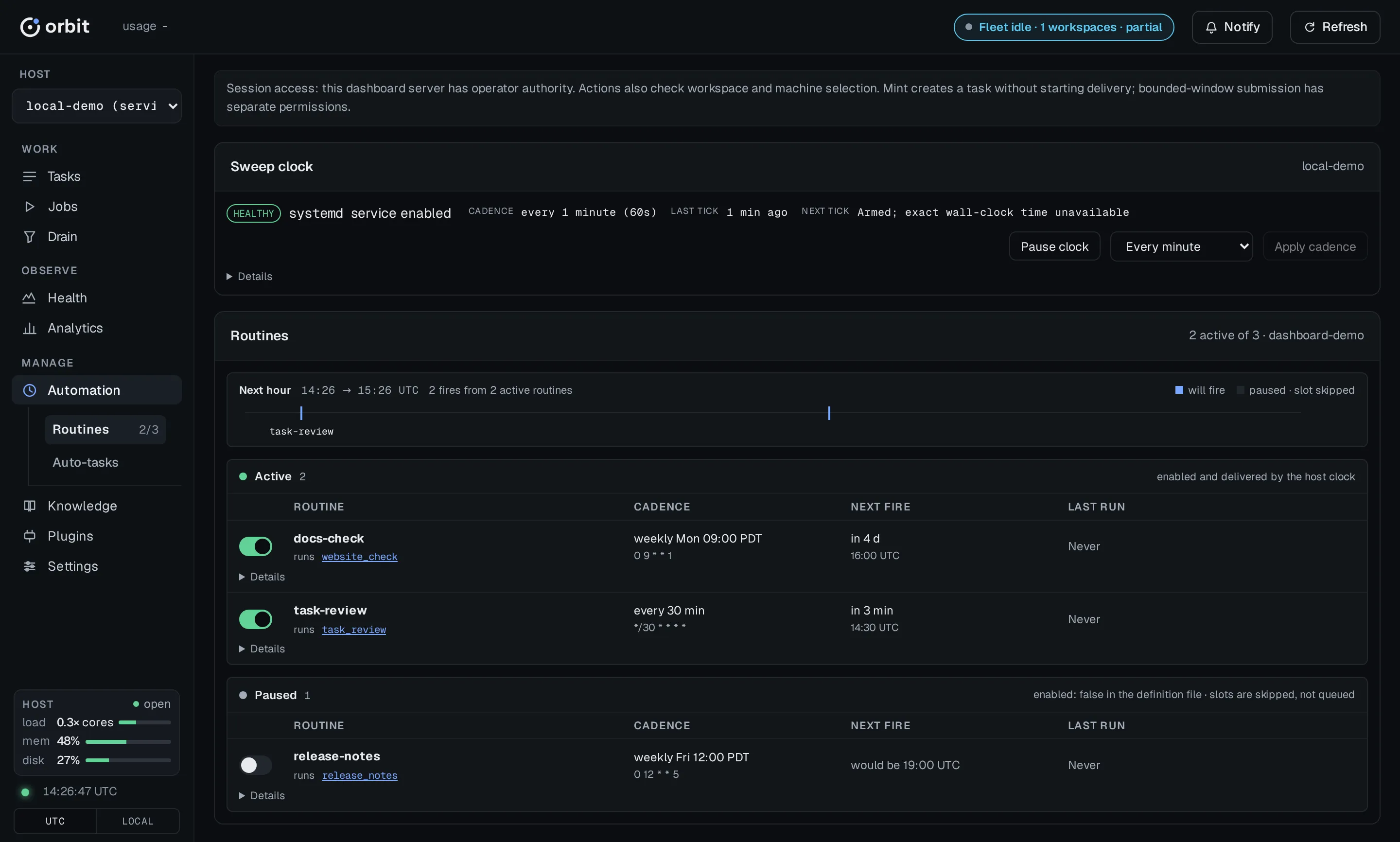 A Next hour strip shows each routine due in the next hour: solid if it
will fire, hollow if it is paused. A paused routine’s slot is skipped, not
queued. An enabled routine that cannot take effect shows a blocked pill.
A Next hour strip shows each routine due in the next hour: solid if it
will fire, hollow if it is paused. A paused routine’s slot is skipped, not
queued. An enabled routine that cannot take effect shows a blocked pill.
Each row’s switch writes the routine’s enabled field. It does not start or
stop the host scheduler clock.
Scheduler clock
Section titled “Scheduler clock”The bar above the routines shows this host’s scheduler clock (orbit ):
health, provider, whether the service is enabled, cadence, and the last and
next tick.
- Pause clock / Enable clock asks for confirmation. It does not change any routine definition.
- The cadence picker and Apply cadence change the interval without pausing or enabling the clock.
The CLI equivalents are orbit , orbit ,
orbit , and orbit .
Auto-tasks
Section titled “Auto-tasks”Definitions live in . and are checked on every scheduler clock
tick, so pausing the clock pauses scheduled mints. Rows are grouped On a
schedule, On delivery (minted after landed deliveries), and
Disabled. The stats strip counts definitions with an open duplicate, and
the scheduler skips those slots; the row calls out the duplicate too.
- The switch writes the definition’s
enabledfield after a confirmation. A disabled definition is skipped, not deleted. - Mint now creates one task immediately. It ignores the schedule, the
enabled flag, and dedupe, so it works on a disabled definition and creates
another task even when one is open. The confirmation warns about this.
orbitdoes the same.auto-task mint <name>
Jobs lists the jobs this workspace’s routines target or recently ran, with Running now above them. They are grouped Sweeps (housekeeping and intake, safe to run by hand), Delivery (task and workspace pipelines), and Other.
Run ▸ starts the job in this workspace with no input and reports the new
run ID. It is disabled on Delivery rows, which need a task or a window:
use ship or the auto-drain. Details shows the
equivalent command, such as
orbit .
Knowledge › Frictions
Section titled “Knowledge › Frictions”Knowledge (#knowledge) holds the selected workspace’s friction
records: what made work harder than it should have been, reported with
orbit . Pick one workspace first. All workspaces replaces
the list with “Select a workspace to view this panel”, because the ledger
is per workspace. To report, search, and resolve records from a terminal,
see Report and triage friction.
Three tiles lead the panel: open, triaged, and resolved this month. Below them, the search box matches a record’s ID, model, tags, status, task, and body text, and Show filters by status:
| Show | Lists |
|---|---|
| Active (default) | open and triaged records. |
| Open | Records not yet looked at. |
| Triaged | Records that have been read and classified. |
| Resolved | Records whose cause is fixed or no longer applies. |
| All | Every record, whatever its status. |
Each row shows the record’s ID, when it was reported, a summary of its
body, its status pill and tags, and during when it was filed
against a task. Select a row to open Friction detail: the full body,
its status, model, reported and resolved times, tags, and the task it
names. On a narrow screen the detail opens inline under the row instead of
in its own panel.
From the detail panel you triage without leaving the dashboard:
- status sets
open,triaged, orresolved. This is the same transition asorbit.friction update <id> --status <status> - tags edits the record’s tag set; saving replaces the stored tags,
as
orbitdoes.friction update --tag - Resolve marks the record resolved, as
orbitdoes. It is disabled on a record that is already resolved.friction resolve
Nothing here files a task or moves a record to another workspace. When a record earns work, file the task and link it in the task’s summary; when a record sits in the wrong workspace, rehome it from the terminal. Both workflows are in Report and triage friction.
Plugins
Section titled “Plugins”Plugins (#plugins) lists the plugins installed on the selected host and
how the selected workspace uses them. Open it when a tool is missing, a
panel you expected is gone, or you want to switch a plugin on or off without
leaving the dashboard. Pick one workspace first. All workspaces replaces
the list with Select and sets the count
to —.
Under the heading, the panel says what is installed on this machine, with
the panels each plugin’s manifest declares. An operator session can enable
or disable a plugin for this host or this workspace. Installing, upgrading,
and editing grants stay on the command line (orbit ). Removing one
does too (orbit ). What each grant allows is in
Install and grant plugins. This view does not edit a manifest.
orbit web serveThen choose Plugins in the left rail, or open
http:/. The address keeps the selected host and
workspace, as the other views do. A plugin follows the host you selected:
you see that machine’s installs, with this workspace’s toggle. From a
terminal, orbit and orbit print that list, and
orbit prints one plugin. The notes name below is the
illustrative plugin from the install guide.
What a card shows
Section titled “What a card shows”The count is the number of cards, including plugins that are not serving
tools. Cards are ordered by name. Each one leads with the name, the version
(such as v0., or v— when none is recorded), and a status:
| Status | Meaning |
|---|---|
active |
Installed, enabled, and serving its tools. |
disabled |
Switched off on this host, or off in this workspace only. |
missing |
This checkout pins it, and this machine has not installed it. |
inactive |
Enabled, but refused when it loads. |
Chips on that line, when they apply:
- pinned —
.in this checkout names the plugin. A pin does not grant a permission, and the plugin tree is not copied into the repository.orbit/ plugins. yaml - unsandboxed — a warning. The backend runs with no confinement, and this
host granted that.
orbitreports the same fact.plugin show notes - certified for a version —
orbitrecorded a passing conformance run for that Orbit version on this host. The chip readsplugin test certifiedwhen that is the recorded version. Hover or focus it to see the version this dashboard is running. · behind host is added, as a warning, when the certificate is an older release than this host:for 0. 32. 0 certifiedmeans this version has not been certified. A version the dashboard cannot parse does not add behind host.for 0. 31. 0 · behind host
The description follows when the plugin has one. A diagnostic follows when the server sends one. That line is why an inactive or missing plugin is still listed. A disabled plugin often has none. Its status and the Effective line name the layer that switched it off.
Host and workspace
Section titled “Host and workspace”The two rows under the description are different switches.
| Row | Meaning |
|---|---|
| Host: enabled or Host: disabled | The machine-wide row. Disabled takes the plugin off every workspace on this host. |
| Workspace: enabled (inherited) | This workspace has not written a toggle. The row reads enabled (inherited) even when the host row is disabled. |
| Workspace: enabled or Workspace: disabled | This workspace wrote its own toggle in [plugin_enablement]. |
Effective: disabled by host or Effective: disabled by workspace is the line that decides whether the plugin’s tools are on. The host row is the ceiling. A workspace can only narrow it, and other workspaces keep their own toggles.
The buttons are Enable host, Disable host, Enable workspace, and Disable workspace. They appear only with an operator session, and only when the selected host accepts writes. On another host, a read-only session hides them. See Switch hosts. Without the session the rows stay and the buttons do not. There is no button for a grant, an upgrade, or an install.
Disable host asks first: Disable Confirming does what
orbit does. Tools stop registering, and the plugin’s
skills are unlinked. Routines and auto-tasks it seeded stay where they are;
the scheduler skips them while the plugin is off.
Disable workspace does not ask. It writes this workspace’s toggle only, as:
orbit plugin disable notes --scope workspaceRun that from the checkout, or pass --workspace . Panels and
link tiles for that plugin leave this workspace. The host row, other
workspaces, and skill links stay as they are. Enable workspace turns
the toggle back on:
orbit plugin enable notes --scope workspaceEnabling the workspace while the host has the plugin disabled writes nothing. The card shows the refusal, which tells you to enable it on the host first.
Enable host turns the machine-wide row back on and keeps the grants
already recorded. It does not grant anything new. If the manifest now asks
for a grant you have not given, or the recorded consent no longer matches,
the button fails and the card shows the error. That error names the
orbit command to review:
orbit plugin enable notes --grant fs,networkEnable host on a missing card does not install the plugin. The error
tells you to run orbit when the checkout pins it, or
orbit when it does not.
A failed toggle leaves the previous state and prints the error on the card. While the request is in flight, that card’s buttons wait. Changing workspace before the answer returns drops the error, so it is not shown on another workspace.
Install, upgrade, and a pin this machine does not have yet stay on the command line:
orbit plugin add ./my-pluginorbit plugin doctororbit plugin sync. is an illustrative local source, as in the install guide.
orbit installs what this checkout pins and this machine is
missing.
Tools, panels, and links
Section titled “Tools, panels, and links”Tool names are chips under the scope rows. A dimmed chip is not active: the
plugin is not serving tools, or a grant it needs is missing. Hover or focus
a chip for its kind (read_only or mutating) and the MCP name it
advertises, or not when it has none. A missing grant is fixed
by enabling again with the complete set you have reviewed, not by a control
on this card. See Diagnose inactive tools.
Link tiles and panels appear only while the status is active. A tile shows
the title the plugin declares and opens an http:/ or https:/ address
in a new tab. Any other scheme is left off the card.
Each panel is the answer from one read-only tool. The tool’s name sits beside the title. A panel cannot run a mutating tool. The body uses the mode the plugin declared:
| What you see | When |
|---|---|
| Label and value rows | The tool returned an object of fields. A nested value is shown as JSON text. |
| A table | The tool returned a list of records. Columns are the union of their fields. An empty list says No |
| Markdown | The tool returned text. It goes through the same sanitizer as the rest of the dashboard, so plugin text cannot add a script or an event handler. |
| Pretty-printed JSON | The declared mode, or any answer that does not fit the mode it declared. The raw answer is shown rather than an empty panel. |
No is an empty label list, an empty table, or a panel whose tool
returned no output. A panel that has not arrived yet says Loading….
A panel larger than 256 KiB (262144 bytes) is cut to a prefix. The body then
leads with Panel
Empty, error, and stale
Section titled “Empty, error, and stale”| What you see | What to do |
|---|---|
Select , count — |
Choose one workspace. All workspaces does not merge plugin lists. Changing host or workspace drops the previous cards instead of leaving them on screen. |
| No plugins installed | The body says no plugins are installed on this machine, then the command orbit (shown in backticks) and installs Nothing is installed here, and nothing is pinned. |
Unable |
The list never arrived. Refresh tries again. |
Unable |
The host the dashboard reads runs an Orbit build that predates this view, so it answers with no route. Refresh cannot fix that. Upgrade that host’s Orbit. |
Refresh |
A later refresh failed. The cards from the last good read stay. The top status line reads panel . Refresh tries again. After a failed refresh the next automatic try waits longer, up to five minutes. A hidden browser tab does not refresh this list until you return to it. |
| An error in one panel body | That panel’s read failed. The rest of the card stays. A later successful read replaces the error. |
| The previous panel body while the list refreshes | A refresh keeps the last good body from this visit instead of blanking the panel. Leaving the workspace, including coming back to the same one, does not reuse that body. One workspace’s output is not shown under another. |
While Plugins is open and the browser tab is visible, the list refreshes about every 30 seconds.
Settings
Section titled “Settings”Settings shows the configuration this workspace runs on, with the same
layering and descriptions as orbit .
| View | Shows |
|---|---|
| Effective | The merged result: workspace values over global values over built-in defaults. |
| Workspace file | The keys . sets, and what each would fall back to if removed. |
| Global file | The keys ~/ sets, and whether each reaches the selected workspace. Edits here write the global file. |
| Crews | The crew table. |
| Keys | Every settable key with its type, section, description, and accepted values. |
| System | Live resource readings, throttle marks, resume thresholds, and the host’s current admission verdict. |
| Hosts | This serving machine’s local identity and registered SSH hosts, independent of the workspace selection. |
Effective opens with a strip naming both files, then one panel per section
(Delivery, Crews, Execution, Review, Housekeeping) and a read-only Paths
grid. Each row shows the value, where it came from, and the key’s description.
The source is workspace, global, default (no file sets it), unset (no
value at all), or registry (from the workspace registry, not
config.).
Rows also flag two things the value alone hides:
overrides: the workspace file replaced a global value.global: trunk global: a workspacesets … — not inherited while a workspace file exists config.must restate the security keystoml execution.,codex. sandbox execution., andcodex. approval_policy execution.to keep them. The Execution panel shows a badge, and the strip warns whenever a workspace file exists.env. pass
A registry strip shows the registered base_branch and ship_mode.
Delivery uses these, not workflow., and the strip flags a
disagreement. Change them with orbit ; the strip is read-only.
Tidy the workspace file
Section titled “Tidy the workspace file”Workspace file lists only the keys . sets, grouped by
TOML table. Three cards count them by what removing a key would do:
- Own value: the effective value would change.
- Restates global: the global file sets the same value.
- Restates built-in default: Orbit ships the same value.
Click a card to filter the table to that kind of key.
Each row’s If removed column names the layer and value the key would fall
back to, followed by no or value . When that fallback is not
reported, it says may . Execution keys fall back to the built-in
default, not the global value, while the workspace file exists, and the row
says so.
When some keys only restate a value, a callout counts them. Its Select
button checks those rows. Remove from file then removes each checked key
from the file in turn and lists each key’s outcome. A key the server refuses
to remove stays checked, with the reason on its row. Edit
changes a value in place and previews the matching orbit
command. + Add key offers the registered keys the file does not set yet.
Check what the global file reaches
Section titled “Check what the global file reaches”Global file opens with This machine: the machine id and task prefix, which no edit changes, and the name, which Rename changes. Three cards count the keys the file sets, relative to the workspace selected in the sidebar:
- In effect: the workspace runs the global value.
- Overridden by its workspace file: the workspace file sets the key, and the card says how many set the same value.
- Not inherited: an execution key the workspace takes from its own file or the built-in default, because it has a workspace file.
Click a card to filter the table. Each row’s In column says the same for
one key, with the workspace file’s value when it sets one. When you edit a
key, the editor previews the matching orbit command and
says whether the change reaches the selected workspace or only workspaces that
do not set the key.
Edit a value
Section titled “Edit a value”Click a row, or its pencil, to edit it. The editor matches the key’s type: a choice list, toggle, number field, or chip list. Each row saves on its own.
- In Effective, saves go to the workspace file (
., per-user and git-ignored). Only Global file writesorbit/ config. toml ~/.. orbit/ config. toml - A save passes the same checks as
orbit. A refused value shows that command’s message on the row.config set - If the workspace has no
config.yet, the first save is refused, because creating the file moves the security keys off global policy. The row offers Copy global policy (toml --seed-from-global) or Start empty (--fresh). - Writes need an operator session. Each records a
config.audit event with the key, the old and new values, and the file. Without the capability, rows are read-only.set
Crews shows one row per crew with its provider, model, effort, tags, and
source layer. The crew named by workflow. is marked. You can
add, edit, and delete crews inline, with two refusals:
- You cannot delete a crew that key still names.
- A file that defines any
[crews.table must resolve*] workflow.within itself, so adding the first crew to a file with no default crew is refused.default_crew
Routines, auto-task definitions, and the workspace registry are not editable here. Workspace settings show one workspace at a time; Hosts also works in All workspaces.
Open Settings › Hosts (#config/) to manage the serving machine’s
hosts.. Through
orbit , this is the remote machine’s registry.
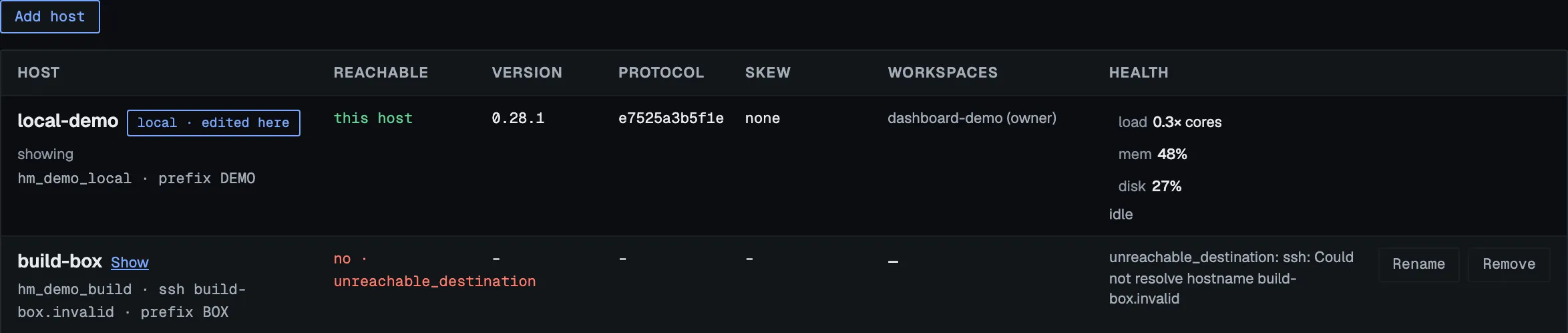
Captured on 2026-10-10 from an isolated demo registry.
build-box. is an intentionally unreachable example SSH target.
The local host comes first, labelled local · edited here. Remote rows show their SSH target, task prefix, reachability, Orbit version, protocol, skew, and workspace roles. The Health column shows current load, memory, and disk for every reachable host, with the same severity as the top-bar chips, and whether a drain or pull drain is active and whether admissions are throttled. Show switches the dashboard to that host. An unreachable host stays visible with its typed error in place of those readings. Opening the view and Reload probe every host. Periodic refreshes reread the file and retain the last probe results; they open no background SSH sessions for that probe. The same refresh reads each reachable host’s resources and drain capacity through the host forward. A CLI-added host appears on the next refresh, and its readings wait until it has been probed.
- Add host opens an inline form for an SSH target and an optional name.
Saving probes the host and registers its identity here, as
orbitdoes. It writes nothing on the remote.host add - Rename edits the local entry name; the machine ID and SSH route stay the same.
- Remove asks for confirmation inline. A
host_in_userefusal lists dependent replica checkouts and pull drains and offers a separate force confirmation, which removes their route.
Edits need an operator session. Without one, this view is read-only. The local host cannot be removed or renamed here. If a newer host file fails validation, a banner shows the error and the last valid snapshot stays visible until you repair the file. Mutations always validate the current file.
For host setup and typed errors, see Run Orbit across hosts.
Authorization
Section titled “Authorization”The dashboard has no login and binds loopback only. Origin and Fetch
Metadata checks reduce browser CSRF but do not control access. When a request
includes Sec-Fetch-Site, the server accepts only same-origin and none;
it refuses same-site, cross-site and unknown values. The header is absent
for direct CLI/curl requests and some older browsers. Anyone who can reach the
port, including a forwarded port, can call the same write endpoints the browser
uses, with the server process’s authority. Keep that port inside your operator
boundary.
Older browsers that omit Fetch Metadata do not get this additional request check; their requests rely on the loopback Host and Origin checks. In particular, an old browser’s GET without an Origin is not distinguished from a direct command-line request.
Two gates apply:
- Workspace scope. All workspaces and inactive workspaces are read-only, even for an operator. The exception is task actions on rows that name their owner, and the machine-global Settings › Hosts view.
- Operator capability. Needed for routine and auto-task switches, Mint now, Run ▸, clock controls, Mark shipped tasks done, Stop and Send pending results, settings writes, plugin enable and disable, and the owner’s handoff approve, revoke, and claim-recovery actions.
The dashboard server has operator capability when:
- it was started from a local interactive terminal;
- it was started with
orbit;web serve --operator - it was started by
orbit, which passesweb connect --operatorby default because the SSH login is the operator act (pass--no-operatorfor a read-only remote); or - its process has
ORBIT_OPERATOR=, which the audit trail records.1
When you switch to another host, a write is forwarded only
if the dashboard you are using, the serving one, has operator capability.
Operator access on the remote machine is not enough on its own, and a
dashboard without it is read-only for every other host. The forward refuses
the write with 403 and code: , naming the
host. operation, before it opens an SSH connection. Operator
capability on the serving dashboard reaches every registered host its SSH
identity can log in to: a dashboard it starts there gets --operator, while a
dashboard already running there keeps its own capability. The remote host’s
own authorization still applies to each request.
MCP is separate: orbit is its only operator path.
An unauthorized control is disabled and shows the reason, and the panel says
how to get operator access. A request that reaches the API anyway gets 403
with code: .
Task ship, approve, reject, and archive, plus run cancel and review-only Resume, do not need operator capability. They need a concrete active workspace, and they fail closed on conflicts such as an in-flight ship or a held workspace claim.
Resume keeps the source run’s completion policy. If that policy marks
tasks done, resuming requires operator capability and otherwise returns
403 with code: and operation: .
Starting a window with approve_proposed set without operator capability
returns the same 403 with operation: .
Starting with auto_fix: requires operator capability too and returns
operation: on refusal. Owner admission and workspace claims
are checked by the shared drain submission path before a run is persisted.
Replay run requires operator capability for any source run.
Private browser sessions
Section titled “Private browser sessions”Private browser sessions are an opt-in credential facility for routes that explicitly require a browser session. Enable it on the dashboard host in the global configuration (it defaults to off), then start or restart the server:
orbit config set --global machine.web_terminal.enabled trueorbit web serveStartup opens a private URL in the browser. To reopen a running dashboard or
get a fresh session after expiry, run orbit on that host. Each URL
contains a one-use ticket valid for five minutes; the browser exchanges it for
a session cookie. orbit prints the URL without opening a
browser. Treat the printed URL as a credential: keep it out of logs and do not
share it. Startup displays the private URL only on an interactive terminal;
redirected output contains only the base address.
The HttpOnly, SameSite=Strict cookie is scoped to /. Its lifetime is set
at startup by global machine. in seconds (default 43200, or
12 hours; range 1–604800). Restart to apply a change. Sessions also expire in
server memory and every server restart invalidates them. See the
configuration reference for the settings.
On Unix, the credential directory and file must belong to the current user
and have modes 700 and 600 respectively; symlinks and special files are
refused. Browser sessions require Unix private-file permissions. web
also refuses missing or invalid credentials, a stopped server, disabled
sessions, or a stale credential that does not match the live dashboard. Start
or restart the enabled dashboard and check local ownership and permissions.
For orbit , enable sessions on the remote host and restart its
dashboard first. Connect requests a fresh remote ticket and opens it through
the local SSH tunnel. If it cannot obtain one, it warns and continues with the
ordinary dashboard URL. With --no-open, an interactive terminal can display
the private URL; redirected output does not. Keep the tunnel open while using
it.
The session endpoint, /, exposes the instance identity and
exchanges tickets when enabled; it returns 404 when disabled, and rejects an
invalid or reused ticket. No existing dashboard route currently requires the
browser-session cookie. Existing dashboard routes retain their prior
authorization, including the operator and workspace gates above; a browser
session does not grant operator capability.
Troubleshooting
Section titled “Troubleshooting”| Symptom | What to check |
|---|---|
No browser, or connection |
Is orbit still running? curl returns ok from a live server. |
refusing |
Bind 127. or ::1. Reach another machine with orbit . |
orbit |
Pass --workspace . |
| Connect waits, then fails readiness | SSH must work without prompts, and orbit must be on the remote PATH. The remote server has about 30 seconds to answer /. |
| Automation buttons disabled | Select one active workspace. If the reason mentions operator authority, see Authorization. connect cannot upgrade a remote server it did not start. |
Ship returns 409 ship_run_in_flight |
The task already has an unfinished ship run. Open the named run_id. |
409 workspace_claim_held |
Another operator holds the workspace claim. Wait for it to expire or inspect the holder; do not retry in a loop. |
| Runs rail count disagrees with Health → Incidents → Errors | They count different things. See Runs and errors. |
| Settings save says “no workspace config exists yet” | Expected on the first write. Choose Copy global policy or Start empty. |
| Settings save returns an admission error | orbit refuses the value too. The message lists the accepted values. |
New workspace missing after orbit |
Click Refresh. The server reloads workspaces. when it changes, and keeps the last good list if the file is malformed. |
| Plugins says to select a workspace, or its buttons are missing | All workspaces does not list plugins. Enable and disable need one workspace, an operator session, and a host that accepts writes. See Plugins. |
| connecting… stays orange after startup | The first API request probably failed. Refresh or the / probe tells a dead process from a slow workspace. |
For uptime monitoring, use the detailed probe. It also checks each workspace’s store and log sink:
curl -s 'http://127.0.0.1:7878/healthz?detailed=true'It returns 200 when every check passes and 503 when any fails. Plain
/ checks liveness only.
- First Task: take one task from your agent’s request to a reviewed pull request.
- Schedule Recurring Work: routines, the host scheduler clock, and auto-task definitions.
- Run a Delivery Window: prepare, start, stop, and recover a bounded drain.
- Connect Your Agent: the tool surface agents use, separate from this operator UI.