

Quickstart
Install Orbit, let your agent set up the repository, and ship a first task from the dashboard.
Before you begin
Section titled “Before you begin”- macOS or Linux, on x64 or arm64. On Windows, run Orbit inside WSL2.
- Node 18 or newer, for the npm install.
- At least one signed-in agent CLI, such as Claude Code or Codex.
- The GitHub CLI (
gh), signed in, so Orbit can open pull requests.
1. Install the CLI
Section titled “1. Install the CLI”npm install -g @orbit-tools/cliorbit initorbit asks for a machine name and a task-ID prefix of 2–5 uppercase
letters, such as ABC. The prefix is permanent on this machine. It also
detects your agent CLIs, links Orbit’s skills into your agents, and on Linux
prepares the sandbox.
2. Let your agent set up the repository
Section titled “2. Let your agent set up the repository”The orbit-setup skill registers the repository, connects your agent over
MCP, and runs orbit . It asks only for what it cannot infer, such as
the branch pull requests should target. When it finishes, start a fresh agent
session so the Orbit tools load.
To do it yourself, run orbit and orbit in the
repository. Install Orbit explains each step.
3. Open the dashboard
Section titled “3. Open the dashboard”orbit web serveThe dashboard opens at http:/ and serves every workspace on
this machine. Keep it running in its own terminal.
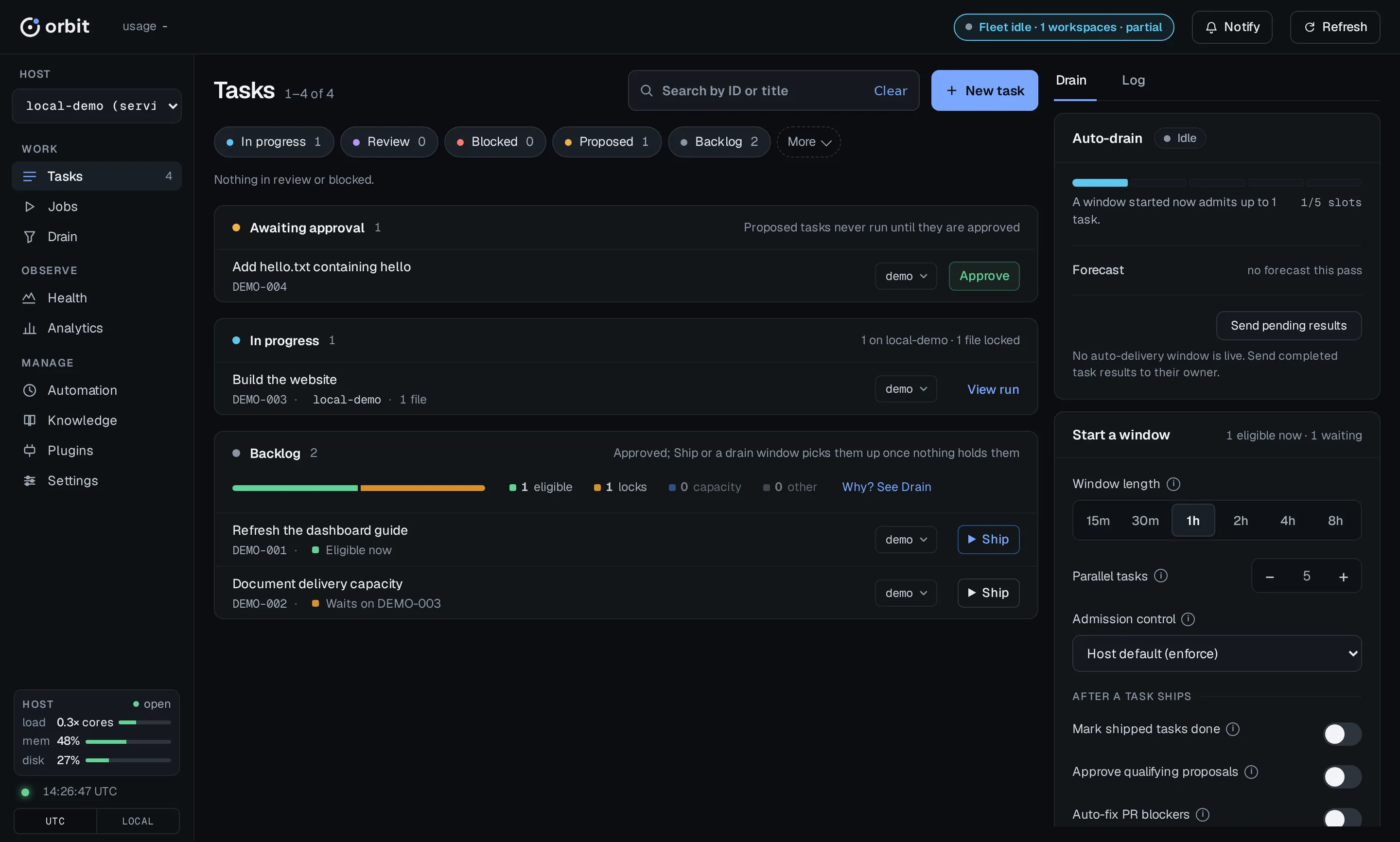
| Section | What you do there |
|---|---|
| Tasks | Approve proposed tasks, ship backlog tasks, edit a task’s details, and review finished work. |
| Runs | Follow a run’s steps and events, and cancel, resume, or replay it. |
| Health | See what is failing now: incidents, policy denials, errors, and every recorded event. |
| Analytics | Follow delivery trends: run durations, reliability, costly paths, and cost. |
| Automation | Turn routines and auto-tasks on or off, file an auto-task now, and run a delivery window. |
| Settings | Inspect and edit configuration and crews. |
It listens on loopback only. To reach the dashboard on another machine over
SSH, run orbit . See
Use the Dashboard.
4. Ship your first task
Section titled “4. Ship your first task”- Ask your agent for a small change, such as documenting one function. It files a task with acceptance criteria. The task appears in Tasks under Awaiting approval.
- Click Approve. The task moves to the backlog.
- Click Ship. Orbit locks the task’s context files and runs an agent in an isolated worktree to plan, execute, and check the change. A second agent reviews it only when review is turned on. Follow the run from View run.
- Review the pull request. The run stops with the task in
reviewand the pull request open. Merge it on GitHub. Then click Approve on the task, or let Orbit close it: a laterorbitdelivery window settles a task whose pull request has merged. See First Task for both routes.run auto
Your agent can approve and ship for you when you tell it to. The dashboard shows the same task either way.
Prefer the terminal? First Task walks through the same flow
with orbit , orbit , and orbit .
Next steps
Section titled “Next steps”Once one task has shipped, choose how much runs without you. Each option below also has a home in the dashboard.
For more than a task or two, hand your agent a spec and ask it to orchestrate.
The orbit-orchestrate skill files the tasks, queues them once you approve,
runs a delivery window, and diagnoses any run that fails.